
Many people buy laptops with the intention of running dual graphics, but they end up with a laptop that is only capable of one graphics card.
The laptop is then forced to run one graphics card with the highest settings, which causes too much heat and leads to a few problems including overheating, reduced stability, and reduced battery life.
The computer market is constantly changing and with it, so is the technology. This is particularly true for personal computers.
Earlier in the life of the PC, the market wasn’t dominated by various manufacturers and that meant that if you wanted a specific model of computer, you would either have to buy a computer from one of the major companies like HP, Dell or Acer
If you own a laptop, and you’re planning to upgrade to a new version later this summer, you might be planning on changing out the graphics processor on the laptop, or maybe even the whole graphics card.
Unfortunately, it can be a lot of work to do that simple thing when you are unfamiliar with the computer system you are using.
Fortunately, it’s not that difficult to change a graphics card, and you shouldn’t have any trouble doing so if you follow the steps given below:
Example of 8GB RAM Configuration:
The configuration is very interesting, so if your existing RAM is 8 gigabytes on your laptop. Then it splits into two equal parts.
The four gigabyte RAM is actually soldered to the motherboard and if the laptop comes with only a bin slot so then this dim slot is currently populated with 4 gig ram.
So your upgrade choices are to basically remove this 4 gig ram and upgrade it with either an 8GB stick or a 16GB Stick.
If you ended with 8GB plus the 4GB soldered ram, so it will be 12GB of ram.
Or if you put up a 16GB stick then you’ll end up with a 20GB of total ram
I said if you are a power user then ill highly recommend you upgrade the system ram to either 12 gigs or 20 gigs because these are the two options that are only available if you have a system with 8GB RAM.
With this kind of laptop, it is not possible to get 32GB of RAM.
How To Put The RAM In Laptop:
Now in order to upgrade the RAM, you will have to open the back of the laptop.
There are about one dozen of screws at the back of the laptop, so you all need is a Phillips screwdriver and unscrew the screws there.
I recommend when you are unscrewing the screws, remember the location where you pick these screws from because these screws are not identical.
After you have open the screws, you need to pry open the back of the laptop. This can be done by a prying tool or even an old plastic credit card or a plastic knife is good enough.
Just find one corner of the laptop and from that edge write it open and then once you have your plastic credit card or knife and you made its way in then just move it across the length of the laptop.
You will hear a lot of clicking sounds at that time because these are the latches that are basically opening up, so gently move it along the four sides of the laptop.
Once all the latches are open then the back of the laptop will easily come out.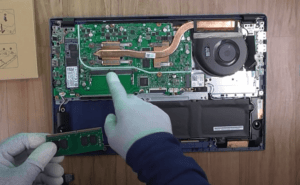
So once you have removed the back of the laptop you will have the access to the memory module so as you can see there is only one dim slot and this template will already have a four-gigabyte memory stick.
So what you need to do is get rid of the four gig memory stick and replace it with either the 8GB or 16GB RAM that you have purchased.
If you have never installed memory modules before it’s not difficult.
All you need to do is make sure that the notch on the memory stick matches the slot.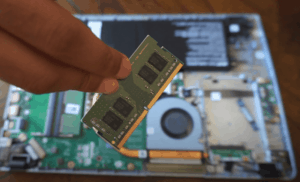 The module is asymmetric. So there’s only one way to put this in the slot.
Make sure that your memory stick the notch is matching with the slot and gently slide it in at around a 45-degree angle.
Once it is in then you press it gently down and it will make a very satisfying click sound when it latches
And that’s it your memory has been upgraded.
If you are a person like me how dont know how to check if the laptop fan is working or not then click here.
Thank youThank you so much for reading this article, hope you like the article and it may help you a lot. Take care so much.

CEO
Hi, My name is Bilal Ali and I am an affiliate marketer and have been involved in this field for a number of years. I have a lot of experience and knowledge in this area, which I love to share with others. I am always looking for new ways to improve my skills and learn more about affiliate marketing. I am also very active on social media, and love to connect with others in the industry.